
Oct 9, 2026 · 8 min read
How an Online Instagram Highlight Downloader Works
Want to save a public Instagram Highlight without signing in or installing an app? An online Instagram highlight downloader can load visible media in your browser, then let you save supported photos…

Scarlett ela
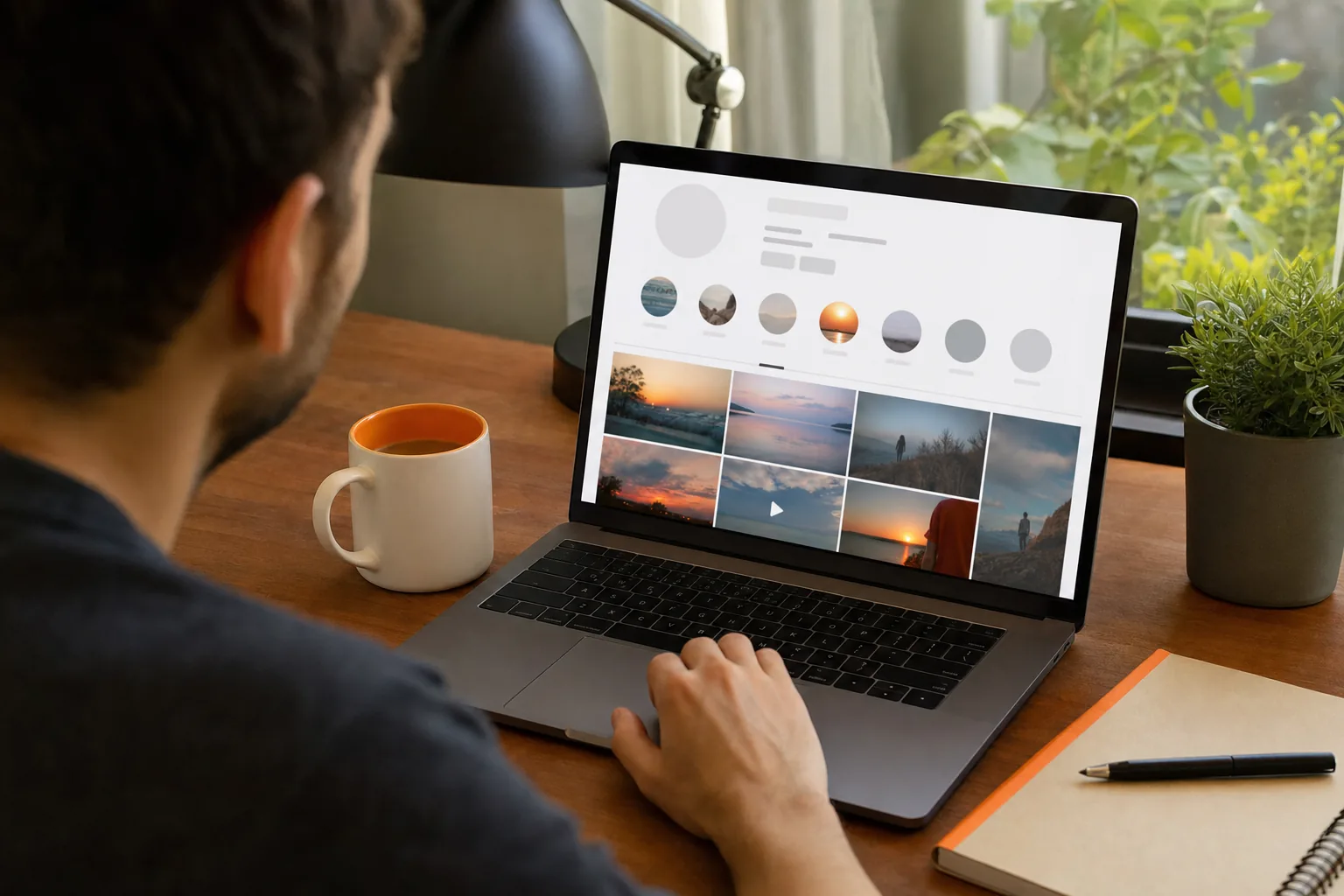
Want to save a public Instagram Highlight without signing in or installing an app? An online Instagram highlight downloader can load visible media in your browser, then let you save supported photos and videos to your device.
We analyzed 42 comments and questions from YouTube, Reddit and Quora about Instagram highlight downloaders and found that 24% mentioned Instagram download restrictions.
What an Online Instagram Highlight Downloader Does
Instagram Highlights are groups of Stories that an account keeps on its profile. An online downloader helps you view and save media from Highlights on public profiles. It works through a web browser, so you don’t need to add an app or extension to your phone or computer.
The basic idea is simple. You enter a public profile name or link, the service looks for media it can access, and you choose what to save. Depending on the service and the media it can retrieve, the saved files may include photos or videos. A downloader can’t make private content public or restore media that is no longer available.
PVSTORY.IO is a free browser-based service for viewing public Instagram content without logging in. It offers HD media downloads as lossless MP4 and JPG files. It also includes public profile metrics and follower and following lists. That makes it useful when you need to inspect a public profile as well as save a visible Highlight.
Whether you can see a Highlight depends on whether the account is public or private, and no viewing tool changes that status.
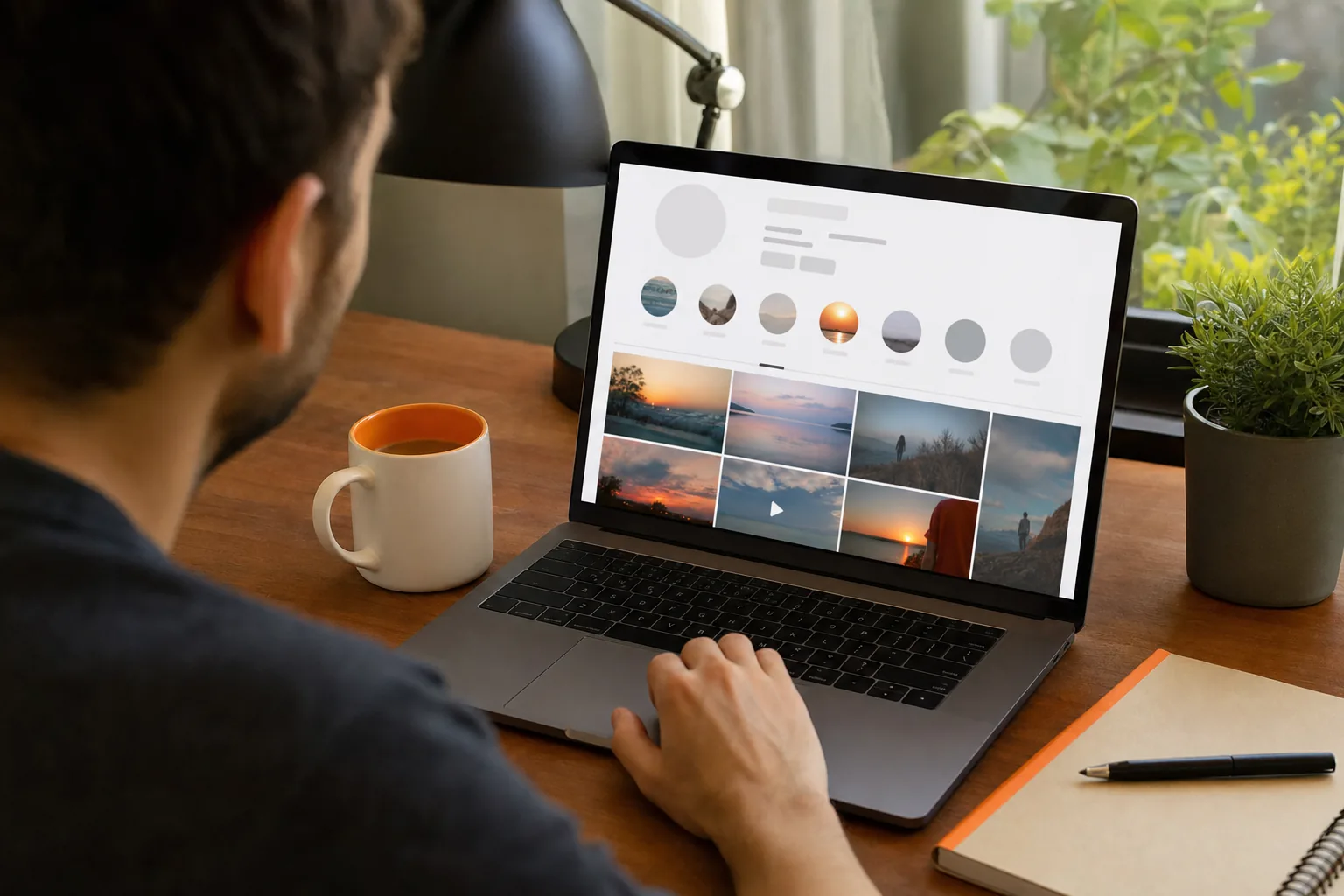
A useful downloader should make its limits plain. It should work only with content that is publicly accessible, explain what file types it can save, and avoid asking you to sign in to Instagram. PVSTORY.IO is built for public profiles, with no account, app, or browser extension needed.
How the Download Process Works
Most browser-based downloaders follow the same broad flow: identify a public profile, load the available Highlight media, then save a selected file. The exact controls vary. Some services start with a profile name; others may ask you to paste a link.
- Open the public profile. Find the account whose Highlight you want to save. Check that its content is visible to you without approval to follow.
- Enter the profile name or link. In PVSTORY.IO, enter the public username in the search field. Don’t add your Instagram password.
- Open the Highlights. Once the profile content loads, select the Highlight you need. Check the previews so you don’t save the wrong story item.
- Select the media and save it. Choose the photo or video you want. Your browser will download the supported file to its usual downloads location.
That’s the general workflow. It’s worth checking whether a service saves one item at a time or lets you select several. Multiple-item support can save clicks, but don’t assume it will download an entire Highlight album in one file. Many services save each photo or clip as its own file.
On a phone, the same browser steps usually apply. Open the downloader in your mobile browser, enter the public username, and select the media. The browser may place the file in Downloads first. From there, you can move a compatible photo or video into your photo library if you want it there.
If you’re saving your own past Stories, check the options available on your account first. For public profiles, follow our step-by-step guide to downloading Instagram Highlights. Either way, review each item before saving, especially when a Highlight contains a run of similar clips.
PVSTORY.IO doesn’t require an Instagram login to browse public media. Avoid any workflow that asks you to type your Instagram password into a separate download form. A request for an OAuth grant or account access deserves the same caution: only approve access when you understand what it permits.
Supported Media, Convenience, and Limits
Highlights can contain still images and video Stories, so an online downloader may handle both kinds of media. PVSTORY.IO describes its downloads as JPG for images and MP4 for video, with HD media support. The quality you receive still depends on what is available from the public source and how the file is processed.
A download keeps the quality of the file the account posted, so a clip uploaded in HD or 4K saves that way, and a low-resolution upload stays low-resolution. Check the image dimensions or play the video after download if quality matters for a work file or archive.
Browser access removes the need to install an extension or app, which can be helpful when you’re using a shared or work device. You can open the page on a phone or computer and save files through the browser. A web tool also keeps the steps in one place: search, preview, select, download.
There are trade-offs. A slow connection can delay a larger video, and a page may fail if the profile or media can’t be reached at that moment. If you need several items, check whether the service supports selecting multiple files. If it doesn’t, you may need to repeat the save process for each item.
After downloading, you can use your device’s built-in photo or video editor to trim a clip or sort it into an album. A downloader saves a file; it doesn’t grant permission to repost it or remove rights held by the creator.
Privacy, Errors, and Responsible Use
Anonymous browsing means you don’t use your Instagram account to open the public profile through the downloader. It doesn’t mean every part of your internet activity is invisible. Your browser and network still handle a web request, and a website may process information needed to load its pages.
PVSTORY.IO lets you browse public Instagram content without logging in. It operates on publicly available data only and keeps no logs. That distinction matters: a tool can keep you from signing in while still processing a request to show public media.
When a download fails
A failed search doesn’t always mean the file is gone. First, check the username or link for typos. Then confirm the profile is public and the Highlight still appears on its page. If the content has been removed or access has changed, a downloader can’t fetch it.
A login prompt is a reason to pause. PVSTORY.IO doesn’t require your Instagram login for public browsing, so don’t enter account credentials into a form just to continue. If a page keeps asking, close it and use a service whose access needs are clear.
Rate limits or temporary loading errors can also interrupt a request. Wait a little, then try the public profile again. Repeated attempts won’t make private media accessible, and bulk or automated saving can raise privacy and platform concerns.
Save with permission in mind
Public access isn’t the same as permission to reuse someone else’s work. For a personal reference copy, keep the file private and retain any context that helps you identify its source. Before reposting, editing for publication, or using a clip in a campaign, ask the creator for permission and check the rules that apply to your use.
Never use a downloader to get around a private account’s settings. If you can’t view a Highlight through normal public access, don’t try to bypass that limit. Use the tool only for content you’re allowed to access and save.
Frequently Asked Questions
Can I download Instagram Highlights without an account?
Yes, you can use a browser-based downloader for public Highlights without signing in to Instagram. PVSTORY.IO lets you enter a public username and view available content without an Instagram account, app, or browser extension. Private profiles remain restricted, and no downloader should ask you to share your Instagram password for this public-content workflow.
Can an online downloader access private Instagram Highlights?
No, a browser-based downloader can’t make private Highlights publicly accessible. Private account settings limit who can view that content. If you don’t have approved access, don’t try to get around the restriction. Use download tools only for public media you can access and have a valid reason to save.
What file types can I save from a Highlight?
Photos commonly save as JPG files, while videos commonly save as MP4 files. PVSTORY.IO describes its media downloads as lossless MP4 and JPG, with HD support. The file you receive depends on the media available and the service’s handling, so open the download to check it before using it.
Why won’t my Highlight download?
A download may fail if the username or link is wrong, the profile is private, or the Highlight is no longer available. Check the profile in a browser first, then retry the correct public username. A temporary loading or rate limit issue may also delay access, so wait before trying again.
Conclusion
For public Instagram Highlights, choose a browser-based downloader that doesn’t ask for your credentials and makes its file limits clear. PVSTORY.IO provides a no-login way to view and save public media. Enter a public username on PVSTORY.IO, preview the Highlight, and save only the items you’re allowed to keep.
Try the anonymous story viewer
Search any public username to watch stories, highlights and reels — no account, no app, no trace.
Open the viewerMore articles
- How to Save Instagram Reels to Your Camera Roll Found a Reel you want to keep? How to save Instagram Reels to your camera roll depends on who posted it and whether downloads are allowed. Start with Instagram’s own download button,…
- How to Download Instagram Highlights Safely Found a Highlight you want to keep? The right way to download Instagram Highlights depends on whether they’re yours or belong to a public profile. Start with Instagram’s archive for your own…
- Does Instagram Notify When You Screenshot a Story? Does Instagram notify when you screenshot a story? No, not for a regular Story. The creator may see that you viewed it, but Instagram doesn’t show them who took a screenshot. The…