
Oct 14, 2026 · 13 min read
How to Save Instagram Reels to Your Camera Roll
Found a Reel you want to keep? How to save Instagram Reels to your camera roll depends on who posted it and whether downloads are allowed. Start with Instagram’s own download button,…

Scarlett ela
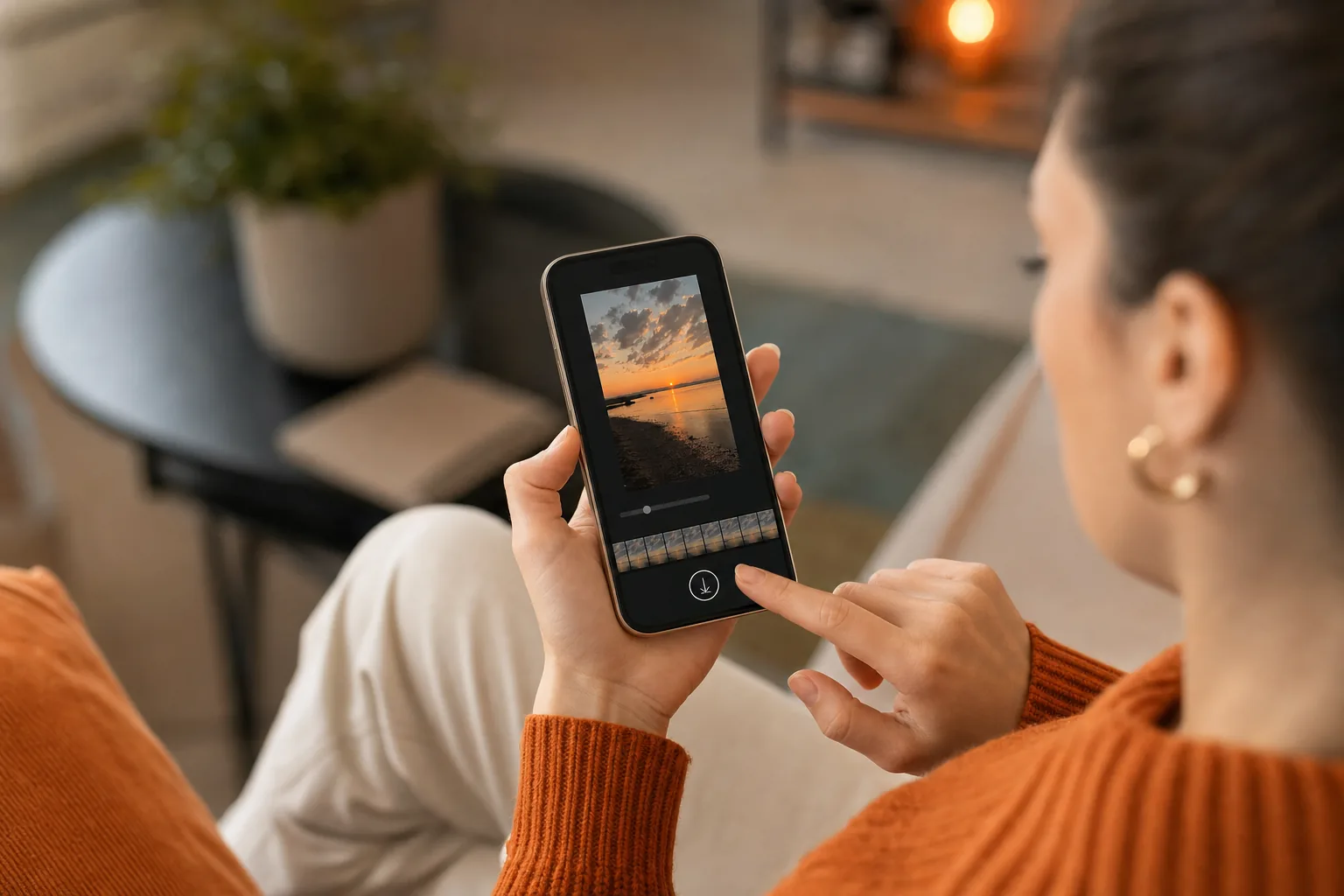
Found a Reel you want to keep? How to save Instagram Reels to your camera roll depends on who posted it and whether downloads are allowed. Start with Instagram’s own download button, then use a suitable option for your own videos or public Reels.
We analyzed 24 comments from Reddit and YouTube about saving Instagram reels to camera roll and found that 33% asked about the location of the download button.
Step 1: Check the Reel’s Privacy and Saving Options
First, check that the Reel is public and that Instagram offers a download action. This helps you choose a method that respects the creator’s settings instead of trying routes that won’t work.
Open the Reel in the Instagram app. Tap the share icon and look for Download. If it appears, Instagram allows you to save that Reel through its built-in feature. The downloaded file should go to your phone’s photo library or gallery.
If there’s no Download option, don’t assume your phone is broken. The account may be private, the creator may have turned off downloads, or the option may not be available for that Reel. Instagram’s menus can also change between app versions.
Check the difference between saving a Reel in Instagram and downloading it. The bookmark action keeps the post in your Instagram Saved area. It doesn’t put a video file in your camera roll. A download creates a local file you can open outside Instagram.
Private means private. A browser tool or screen recorder shouldn’t be used to get around an account’s privacy settings. If you have a valid reason to keep a clip from a private account, ask the creator to share the original file or give permission.
Use the following quick check before you continue:
- Your Reel: Save it from the editor, your profile, or your account archive.
- Someone else’s public Reel: Use Instagram’s Download option if it’s available.
- No Download option: Consider a browser-based tool for a public Reel, or record your screen only if you’re allowed to keep a copy.
If you’re also browsing other public Instagram media, our guide to viewing Instagram Stories anonymously explains the public-profile boundary. Viewing and saving are different actions, so check the permission for the file itself.
For a public Reel, a missing button is a sign to switch methods, not to enter your Instagram password into an outside site.
Step 2: Save Your Own Reel to Your Phone
For your own Reel, save a copy before publishing when you can. You’ll have a local version ready for backup or review, without needing to find the post again.
Save a Reel before you share it
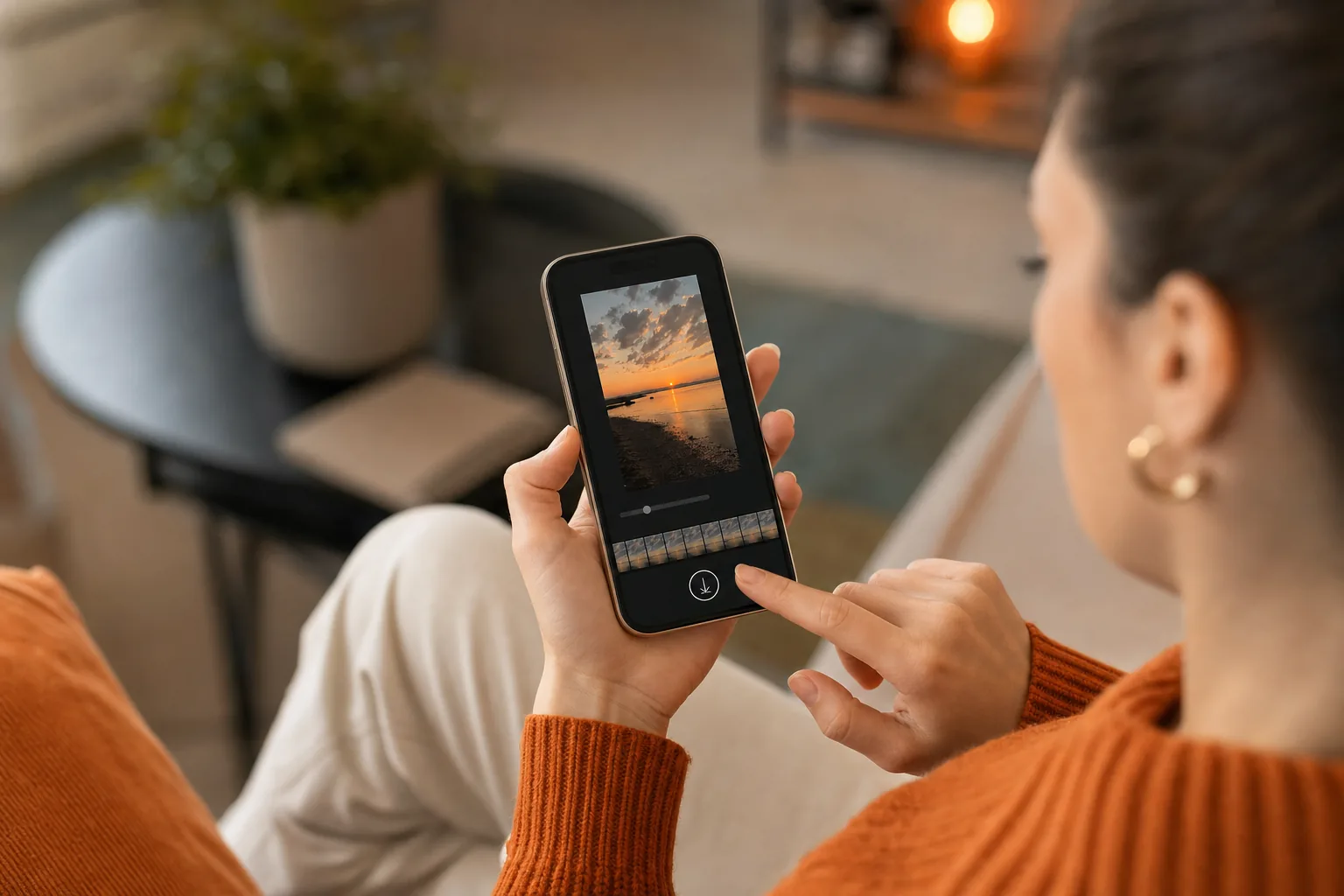
Build your Reel in Instagram, then look for the download arrow in the editing or preview screen. Tap it before you publish. Instagram should save a copy to your device’s photo library or gallery.
The exact button placement can vary. Look over the preview screen before you tap Share, and check the saved file after the download finishes. If you added music, effects, or text, play the copy once to make sure it looks and sounds the way you expect.
On iPhone, check Photos. On Android, check Gallery or your phone’s photo app. If the file isn’t there, open the Files app or your Downloads folder before trying again. Some phones place saved media in a folder rather than the main camera timeline.
That’s also the best time to save a draft you haven’t posted. Open the draft and go to its preview or edit screen. If you see a download arrow, tap it, then check Photos or Gallery. Draft menus differ by app version, so the button may not appear in the same place on every phone.
Don’t publish a draft just to get a copy onto your phone. If the download action isn’t available, keep the draft in Instagram or export the source clips from the editing app you used. For a longer-term copy of account media, Instagram’s account information export is another route to consider.
On iPhone, the built-in screen recorder can capture what’s on screen when you’re permitted to keep the content. Some apps may limit video or audio recording, and you start and stop a recording from Control Center, as Step 5 shows.
For creators, a quick check before publishing can save a later search: confirm the file is in your device library and that its sound is intact.
Step 3: Download a Public Reel Using Instagram
For someone else’s public Reel, try Instagram’s own download option first. It’s the simplest route when the creator has enabled downloads.
- Open the public Reel in the Instagram app on your iPhone or Android phone.
- Tap the share icon beneath the Reel.
- Select Download, if it appears.
- Wait for the download to finish, then check Photos or Gallery.
If the Reel isn’t on your screen, you can usually open it from the creator’s public profile. Tap the Reels tab, select the clip, then check its share menu. Don’t confuse Save or the bookmark icon with Download. Save keeps a link inside Instagram; Download stores a media file on your phone.
Once the file appears, play it through. Instagram may attach attribution or handle audio differently, especially when a Reel includes licensed music. Don’t assume the saved copy matches the post in every detail.
If you want all your own Reels to save automatically, check the sharing or media settings in your current Instagram app. Settings and labels can vary, and a save toggle shown while making one Reel may apply only to that Reel. If you don’t see a clear option for automatic saving, use the download control before you publish each video.
Instagram doesn’t offer a download button for every public Reel. If it’s missing, go back to the privacy check in Step 1. A private account or a creator’s download choice can limit what the app lets you save.
Use Instagram’s direct download for a quick personal copy when it’s available. If you’re saving several clips, handle them one at a time and check each file before moving on. That makes it easier to catch a missing download or audio change while the Reel is still open.
Step 4: Save a Public Reel with PVSTORY.IO
When Instagram doesn’t show Download, PVSTORY.IO can help you save a public Reel through your browser. It works without an Instagram login, an app, or a browser extension.
- In Instagram, open the public Reel you’re allowed to keep.
- Tap the share icon and choose Copy link.
- Open PVSTORY.IO in your phone’s browser.
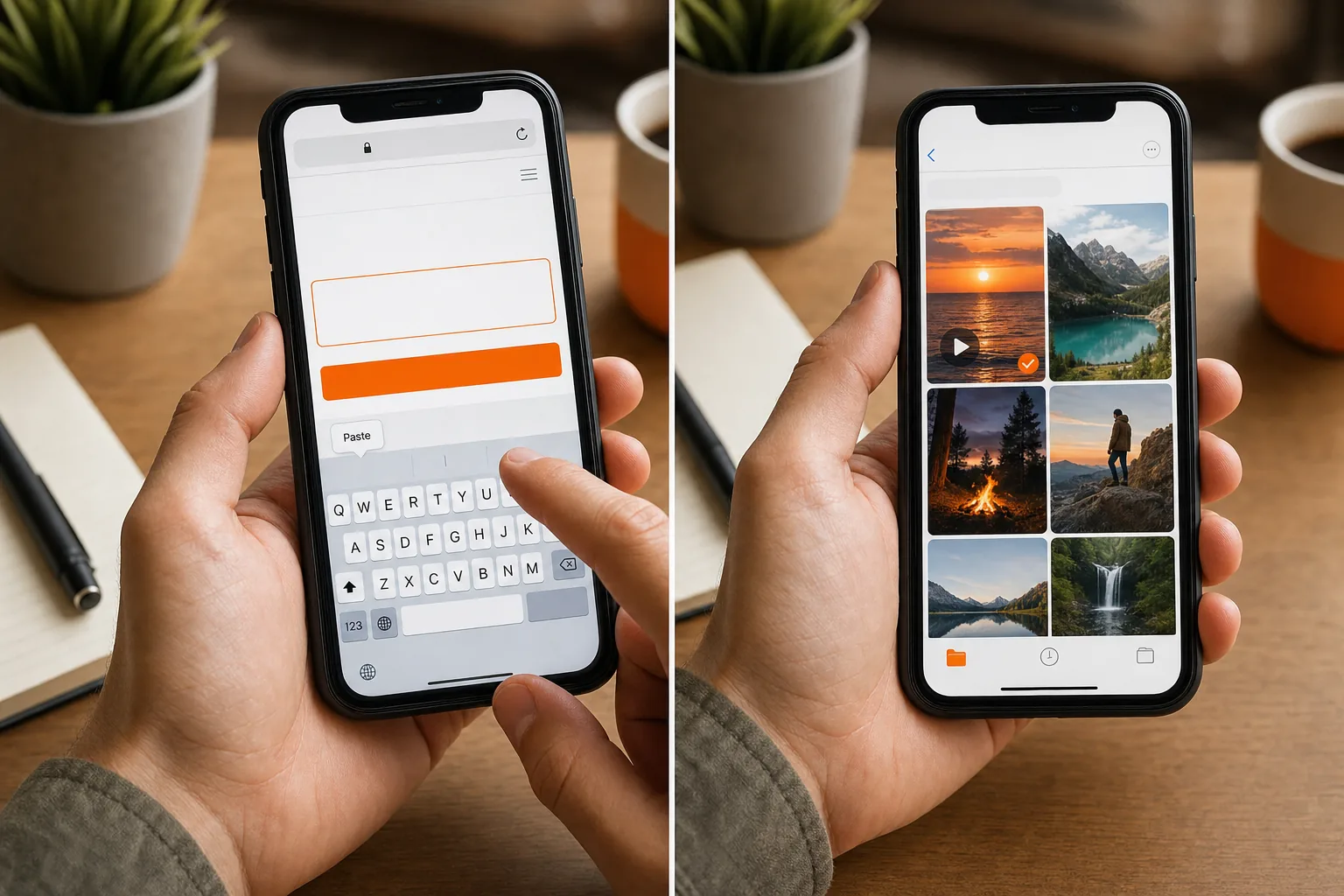
- Enter or paste the Reel link, then select the available download option.
- Save the file when your browser prompts you.
PVSTORY.IO supports public Instagram media downloads, including Reels. We offer HD, watermark-free downloads, with MP4 and JPG formats available for supported media. Format choices can depend on the content type, so check the options shown for that Reel rather than expecting every format for every post.
The key privacy check is straightforward: PVSTORY.IO doesn’t require your Instagram password to retrieve public content. Don’t share your login details or approve an OAuth grant for a download task that only needs a public Reel link. A tool asking for account credentials is asking for more access than this workflow requires.
After the download, the save location depends on your phone. On iPhone, your browser may save the file to Files first. On Android, the browser commonly places it in Downloads. Open the file from that location, then use your device’s save or share option to move it into Photos or Gallery if needed.
PVSTORY.IO is a browser-based option for public profiles only. It doesn’t turn private posts into public ones, and downloading a file doesn’t grant rights to repost it. Our guide to how an online Instagram highlight downloader works covers a related browser workflow and the same need to respect profile privacy.
For a few files, copy and process each Reel link separately. Keep the downloaded copy for a permitted purpose, such as offline viewing or your own reference. Ask the creator before you edit, publish, or share their work elsewhere.
Step 5: Use Screen Recording Only for Reels You’re Allowed to Keep
Screen recording can help when a Reel has no download button, but it records the playback on your phone rather than retrieving the original file. Use it only for content you’re allowed to retain.
On iPhone
Open Control Center and tap the Screen Recording button. Return to Instagram, play the Reel from the start, then stop the recording when it ends. The video should appear in Photos.
If the Screen Recording button isn’t in Control Center, check your iPhone’s Control Center settings and add it. Before you record, silence alerts so a banner won’t cover the clip. You can trim the start and end in Photos afterward.
Audio may not be captured in every app or situation. Some apps don’t allow recording of their audio or video. Play the result before relying on it, especially if the sound is important.
On Android
Swipe down from the top of the screen to open Quick Settings, then tap Screen record. If you don’t see it, expand the panel or check your phone’s settings. The control’s name and location can vary by device and Android version.
When prompted, choose whether to record device audio, microphone audio, or both. For a Reel’s sound, select the device or media audio option if your phone offers it. Start recording, play the Reel, then stop. Look for the clip in Gallery or a Screen recordings folder.
If the recording is silent, check the audio choice before you try again.
A recording may include Instagram’s buttons or status bar, and its quality depends on your screen and recording settings. It can also capture notifications. Use it as a fallback, not as a way to override a creator’s choice or copy a private Reel.
Screen recording is also different from saving a video draft. A recording captures the visible playback, while a draft download can preserve a cleaner version of your own edit. If you own the Reel, try the editor’s download option first.
Step 6: Find the Saved Reel and Fix Common Problems
If a Reel seems to disappear after downloading, check where your phone puts video files before repeating the process. The app you used affects the file’s location.
Where to look on iPhone
For a native Instagram download or screen recording, open Photos and check Recents or Videos. For a browser download, open Files and look in Downloads. If you used Save to Files, the clip stays there until you move it into Photos.
To move a video from Files, open it, tap the share control, then choose the option to save the video to Photos if it appears. If that option isn’t shown, check that the file finished downloading and that it’s a video file your phone can open.
Where to look on Android
Check your gallery app first, then open the Files app and look in Downloads. Screen recordings may be in a folder named Movies or Screen recordings. If the file is present in Files but missing from Gallery, close and reopen the gallery app, then check again.
Fix the usual snags
- No Download button: The Reel may not be eligible for Instagram’s native download. Use a permitted browser workflow for a public Reel, or ask the creator for a copy.
- Download won’t start: Check your connection, confirm the link opens the right public Reel, and try again in your browser. A copied link to a private post won’t make that post accessible.
- File is missing: Check Photos or Gallery, then Files or Downloads. A browser file may not appear in the camera timeline until you save it there.
- Recording has no sound: Review the screen recorder’s audio setting before starting again. Some apps may restrict audio capture.
- Video looks soft or incomplete: Check that the download finished and play it on your phone. A screen recording reflects your playback and display, not necessarily the original file quality.
For your own account, an information export can help when you need a broader archive rather than one Reel at a time. Check the storage space available before requesting a large media export, since higher-quality video files take more room.
Our guide to downloading Instagram Highlights safely covers related file-location and permission issues. The same habit helps with Reels: identify which method made the file, then check the folder that method uses.
Instagram’s in-app bookmark is useful when you only want to return to a post later. For an offline video file, confirm that you used a download or recording method and that the saved copy opens outside Instagram.
FAQ
Can I save any Instagram Reel to my camera roll?
No, not every Reel has a native download option. Instagram’s Download action depends on the Reel and its creator’s settings. If it’s missing, you can use a browser-based method for a public Reel you’re allowed to keep, or record playback with permission. Private-account settings should not be bypassed.
How do I save an Instagram Reel draft without posting it?
Look for the download arrow on the draft’s preview or edit screen, then tap it before sharing. Check Photos on iPhone or Gallery on Android afterward. Draft menus can differ by app version. If there’s no download action, keep the draft in Instagram or export the source clips you used.
Why can’t I find a Reel I downloaded?
Check both your photo library and your file manager. On iPhone, a browser may save the clip to Files before it reaches Photos. On Android, check Downloads as well as Gallery. If the file appears in Files but not your photo app, open it and use the save or move option.
Can I save a Reel without a watermark?
Yes, a public Reel may be available as a watermark-free download through a browser tool such as PVSTORY.IO. Available formats depend on the media and the options shown. A watermark-free file is still someone else’s work, so get permission before reposting or editing it for public use.
Can I repost a Reel after I download it?
No, downloading a file doesn’t give you permission to repost it. The creator may hold rights to the video, and music or other material may have separate limits. Ask for permission for your intended use. Credit is helpful, but it doesn’t replace permission when permission is required.
Conclusion
Use Instagram’s Download option when it’s available; for public Reels without that button, use a browser-based download only when you’re allowed to keep the clip. Try the steps with one Reel, then check where your phone saved it. For other public Instagram media, explore PVSTORY.IO’s guides on safe downloads.
Try the anonymous story viewer
Search any public username to watch stories, highlights and reels — no account, no app, no trace.
Open the viewerMore articles
- How an Online Instagram Highlight Downloader Works Want to save a public Instagram Highlight without signing in or installing an app? An online Instagram highlight downloader can load visible media in your browser, then let you save supported photos…
- How to Download Instagram Highlights Safely Found a Highlight you want to keep? The right way to download Instagram Highlights depends on whether they’re yours or belong to a public profile. Start with Instagram’s archive for your own…
- Does Instagram Notify When You Screenshot a Story? Does Instagram notify when you screenshot a story? No, not for a regular Story. The creator may see that you viewed it, but Instagram doesn’t show them who took a screenshot. The…