
Oct 8, 2026 · 13 min read
How to Download Instagram Highlights Safely
Found a Highlight you want to keep? The right way to download Instagram Highlights depends on whether they’re yours or belong to a public profile. Start with Instagram’s archive for your own…

Scarlett ela
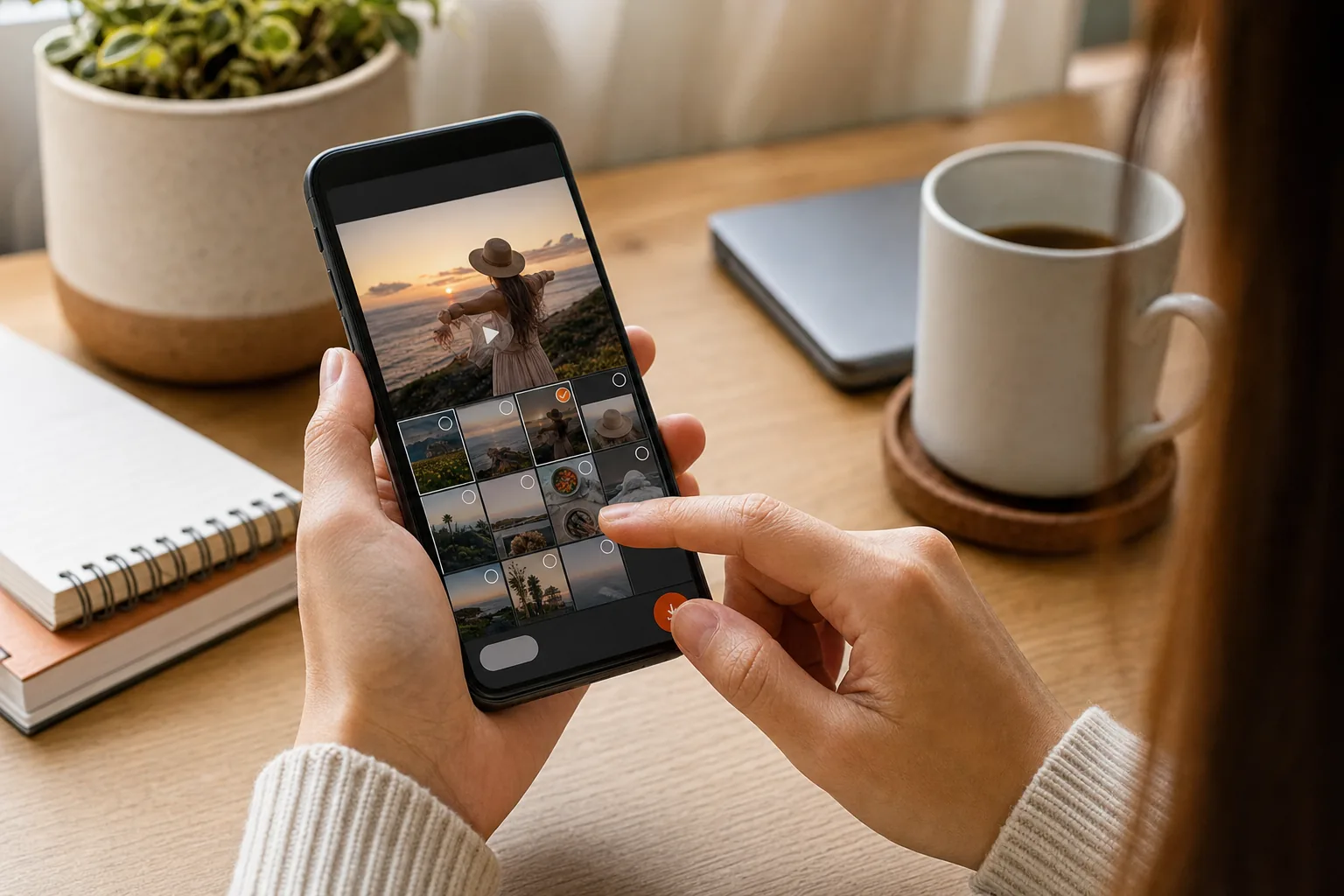
Found a Highlight you want to keep? The right way to download Instagram Highlights depends on whether they’re yours or belong to a public profile. Start with Instagram’s archive for your own Stories. For public content, a browser-based viewer can help you save selected items without signing in.
Step 1: Check Whether the Highlight Is Yours or Public
Instagram Highlights are groups of past Stories pinned below a profile bio. A regular Story usually disappears from public view after 24 hours. A Highlight can stay on the profile until its owner removes it.
First, decide who owns the content. If it’s yours, use the account’s own controls for saving content. That keeps the download within your account and avoids sharing your login with another service. If it belongs to someone else, check whether the profile and the Highlight are public.
Public access has a clear limit: it doesn’t include private profiles or Stories shared with a restricted audience. A browser tool can only work with content that’s publicly available. It can’t make a private Highlight public or restore one the owner has removed.
It also helps to know what you’re saving. One Highlight can hold several photos and videos. Its round cover is separate from the Stories inside, so decide whether you need the cover image, individual items, or both.
Instagram’s app doesn’t provide a single button for visitors to export another person’s Highlight. For your own Stories, use the app’s own saving controls instead. That means the next step changes based on ownership.
Step 2: Save a Highlight From Your Own Instagram Account
When the Highlight is yours, look for the original Story among the saved content for your account. A Highlight is a pinned collection, while your account archive may include eligible Stories. For a personal backup, check whether the original Story is available there.
Find the Story in your Archive
- Open Instagram and go to the profile that owns the Highlight.
- Open the profile menu and choose Archive. If the app opens a different archive view, switch to the relevant archive view.
- Find the Story you want. The archive is organized by date, which can help when you remember roughly when you posted it.
- Open the Story, then use the menu to choose the available save option, such as Save photo or Save video.
App labels and menu placement can change. If you don’t see the same wording, check the Story’s menu for a save or download control.
Check your archive settings
Stories may not appear in your Archive if the save-to-archive setting was off when you posted them. Turning it on now won’t bring back Stories that weren’t saved. If an item is missing, check your device for the original file, or look for a copy in a backup you control.
Instagram may also change how some archived media is stored. Music or moving effects might not behave the same way in an archived copy as they did in the original Story. Open the saved file and check its sound and visuals before you rely on it.
If you need a copy before sharing a new Story, use the app’s save control while preparing it. That gives you a file on your device without having to find the Story later. For a Highlight you made in the past, open each Story from the Archive and save the items you need.
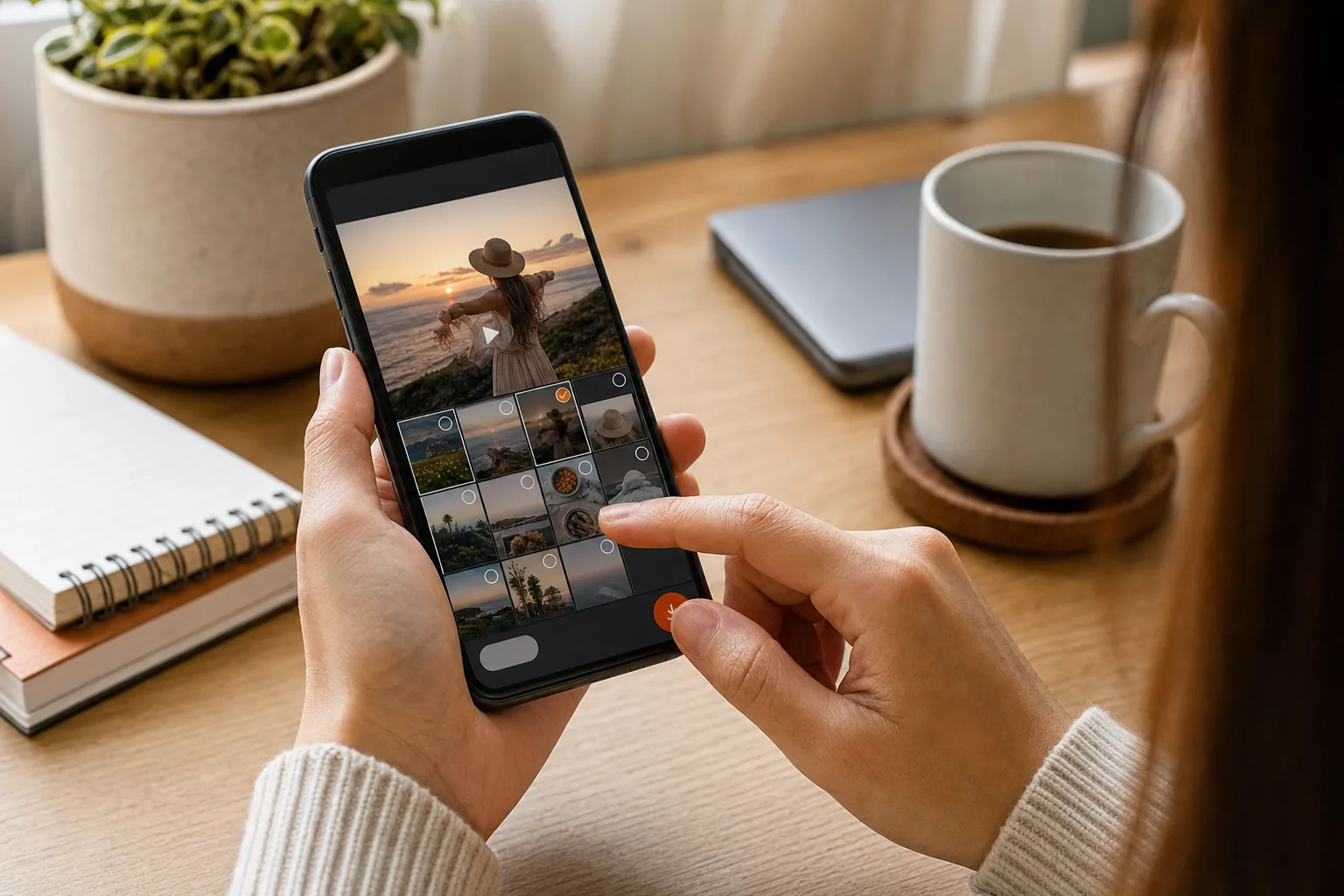
By now you should have the Story file saved on your device, or a clear idea of which Story is missing from the Archive. Check the file before moving on.
Step 3: Find a Public Highlight With a Browser-Based Tool
For a public profile, a browser-based tool can show available Highlights without an app install or Instagram login. Use the profile’s exact username or its public profile link. Don’t enter your Instagram password or session details into a download page.
Open the public profile
- Open the profile in Instagram or a browser and confirm you have the right account.
- Copy the username carefully. Check periods and underscores, since a small typo can lead to a different profile.
- Open PVSTORY.IO in your browser and enter the public username in the search field.
- Choose the Highlights view when the profile results load, then select the Highlight you want to inspect.
PVSTORY.IO is a browser-based tool for viewing public Instagram Stories, Highlights, posts, and reels without logging in. It also supports media downloads, with no app or browser extension needed. The boundary is public content: it won’t provide access to private profiles or restricted Stories.
Want to understand how anonymous viewing works before saving anything? Our guide to viewing Instagram Stories anonymously explains the basic browser workflow and its limits.
Take a moment to verify the profile name and Highlight title before you continue. A creator may group older Stories into several collections, and the cover alone may not tell you what each one contains. Preview the items so you don’t save the wrong set.
If the profile is private, stop here. A public browser tool should respect Instagram’s access settings rather than ask you to sign in or provide account cookies. A request for those credentials is a reason to close the page.
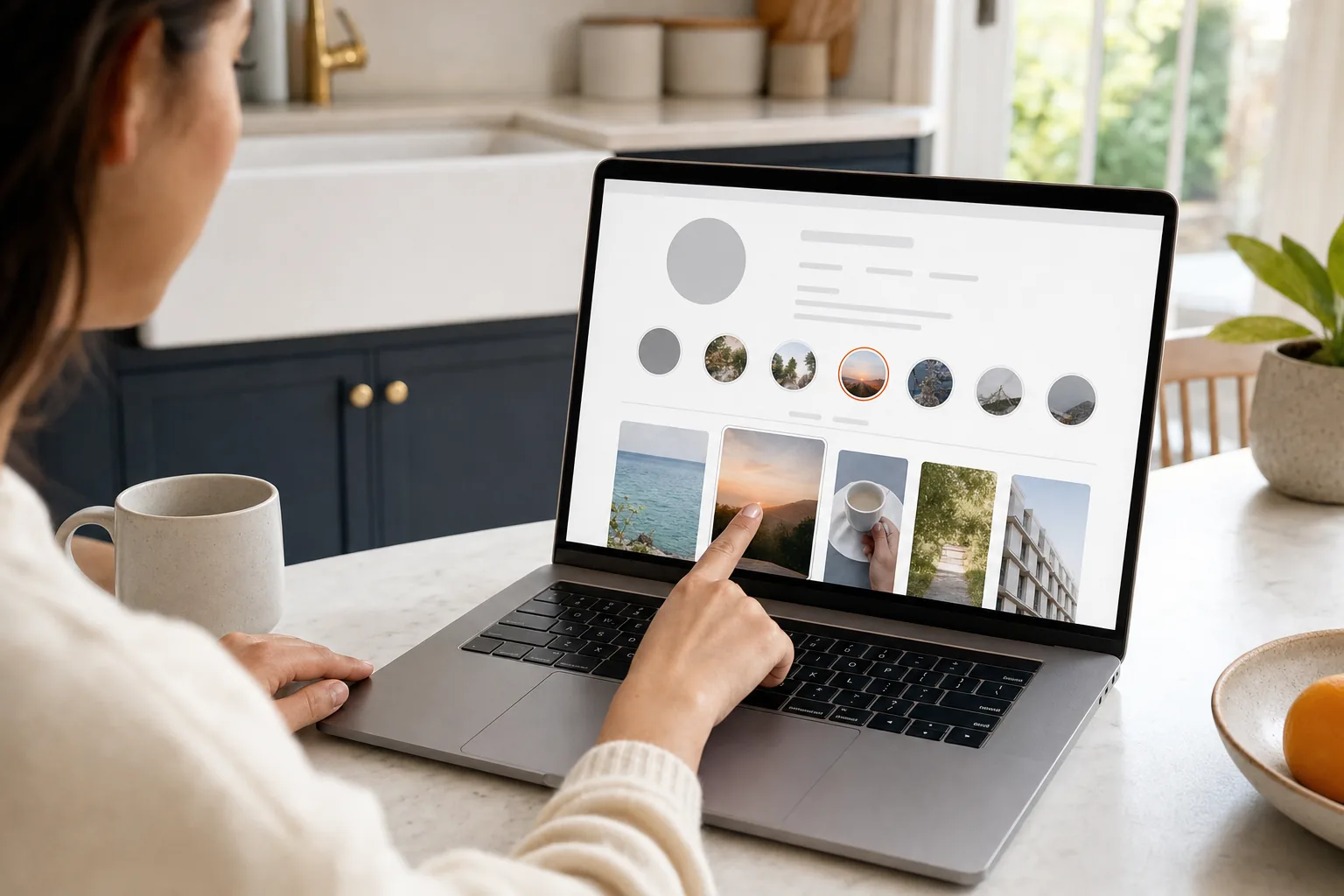
By now you should have the correct public profile open and the Highlight you want selected. If no Highlights appear, use the troubleshooting steps below before trying again.
Step 4: Select and Download the Highlight Stories You Need
A Highlight is a collection, but each photo or video inside it is its own item. Preview the collection first, then save only the files that serve your purpose. That keeps a small reference task from turning into a folder of unrelated clips.
Pick the right items
- Open the Highlight and move through its Stories one at a time.
- Check each image or video before saving it. Confirm it’s the content you intended to keep.
- Select the download control for that item and let the browser finish saving the file.
- Repeat for the other items you have a reason and permission to keep.
Photos and videos may save in different formats. A photo commonly arrives as an image file, while a video may arrive as an MP4. The format and quality depend on the media available through Instagram and the download process. A download can preserve the available file; it can’t restore detail that wasn’t there.
Don’t assume that selecting a Highlight saves every item in one combined file. Some browser workflows present each Story separately, so check the page’s controls and save each needed item. If you’re collecting several Stories, keep a note of which ones you have already saved.
For a creator or social media manager, that simple check can prevent a mix-up during a handoff. You might save a product announcement for an internal reference folder, then label the file with the campaign or date. Keep the original context with it, so a teammate knows what the image was meant to show.
PVSTORY.IO supports watermark-free media downloads, along with public viewing in a browser. A watermark-free file doesn’t grant permission to repost or edit someone else’s work. Treat the download as a copy for a permitted purpose, not as a new asset you own.
Step 5: Locate the Download on iPhone, Android, or a Computer
A completed download may not appear in your photo library or media gallery right away. Browsers often save files to a Downloads folder first. Check the browser’s download list if you’re not sure where the file went.
On iPhone
Open your browser’s downloads list and select the file to view it. You can also look in your device’s file manager under Downloads. To move a compatible video into your photo library, open it, tap the Share button, then choose the option to save the video. For an image, use the matching save-image option.
Don’t delete the file manager copy until you’ve checked that the image or video appears in your photo library and opens as expected. Keeping the original in Downloads for a moment gives you a second chance if the save-to-library step didn’t work.
On Android
Open your browser’s download list or your device’s file manager, then check Downloads. Depending on your phone and browser settings, an image or video may also appear in a media gallery. If it doesn’t, use the file manager to move it to a media folder your gallery scans.
For a group of files, sort by download time. Open one photo and one video to confirm the files are complete and play correctly. If you’re preparing a handoff, move them into a clearly named folder after checking them.
On a computer
Open the browser’s downloads list or the computer’s Downloads folder. Most browsers show the file name and its saved location. From there, you can move the files into a project folder or copy them to storage you control.
Browsers may rename duplicate downloads by adding a number to the file name. Check that before sharing a folder so two different Stories don’t appear to be the same file. A quick preview helps catch an incomplete download, too.
By now you should have the media in a folder or photo library you can find again. If the item isn’t there, return to the browser’s download list before repeating the download.
Step 6: Troubleshoot Highlights That Will Not Load or Download
When a Highlight won’t load, check access and the link before assuming the download itself failed. Work through these checks in order so you don’t waste time repeating the same request.
Confirm the profile and Highlight are public
A private profile’s Highlights aren’t available through a public browser tool. The same applies if the owner removed the Highlight or changed who can see the Story. If the profile is private, use only access the owner has granted you, such as viewing it through an approved account.
Check the username or link
Look for a missing letter, period, or underscore. If you copied a link, make sure it points to the profile or Highlight you meant to open, not an incomplete preview. When in doubt, return to the profile and copy the link again.
Try a clean browser session
Refresh the page once. If it still fails, open a private browsing window or try another browser. A browser setting or content blocker may prevent part of a page from loading. Don’t disable security features broadly; first check whether the same public profile opens normally in your usual browser.
Instagram can also change how public content is delivered. If the profile is public and the link is correct, wait a little before trying again. Repeatedly submitting the same link won’t make a private or deleted Highlight available.
Check the file, not only the page
Sometimes the download completes but saves somewhere unexpected. Look in the browser’s download list and the device’s Downloads folder. If the file is present but won’t open, try downloading that single item again after confirming you have enough device storage.
If the page asks for your Instagram password, an OAuth grant, or session cookies to save a public Highlight, don’t provide them. A public-media workflow doesn’t need your account credentials. Keep the task limited to a public username or link.
Use this decision rule: private or removed content won’t load through a public viewer. A public profile with a correct link may need a refresh or a fresh browser session.
Step 7: Use Downloaded Highlights Responsibly
Saving a file doesn’t transfer ownership of the content. A public Highlight may be visible to anyone, but the creator may still hold rights to their work.
Before you repost, edit, use in an ad, or include a saved Story in a presentation, ask the creator for permission. If you’re saving your own media, keep a copy of the source files too. That gives you a version you control if a platform copy changes or disappears.
For general information about copyright, see this copyright overview. The details of what’s allowed depend on your use and the law that applies, so get legal advice for a business or rights dispute.
For a personal archive, save only what you need and keep the creator’s name or profile context with the file. For research, record why the material matters and how it was publicly available when you saved it. That context can help prevent an old reference image from being mistaken for your own work.
Businesses can use public Highlights to study how a profile organizes FAQs, product information, or event recaps. Keep that work to observation unless you have permission to reuse the actual media. A screenshot or download isn’t a license, and giving credit alone doesn’t replace permission when permission is required.
PVSTORY.IO is built for viewing and downloading public Instagram media without logging in. Use that boundary as a guide: public access can make a file available to view, but it doesn’t decide whether you may publish or adapt it.
FAQ
Can I download my own Instagram Highlights?
Yes, use a copy of the Story you already have, if available. If the Story isn’t in your saved files, check your device for the original. Changing settings now won’t recover Stories that weren’t saved before.
Can I download Highlights from a private Instagram account?
No, a public browser tool can’t access private Highlights or bypass Instagram’s audience settings. If you’re an approved follower, view the content through your own authorized account and ask the owner before saving or reusing it. Don’t trust a site that claims it can unlock a private profile by collecting your password.
Does Instagram have a direct download button for someone else’s Highlight?
No, Instagram doesn’t provide viewers with a general download control for another person’s Highlight. If the content is public, a browser-based tool may let you save available items. That doesn’t change the creator’s rights, so get permission before sharing the files elsewhere.
Where do Instagram Highlight downloads go on my phone?
They often go to the browser’s Downloads folder first. On iPhone, check your device storage for Downloads. On Android, check the browser’s download list or device storage. You may need to use the Share menu to move a video or place a file in a folder used for media.
Will the account owner know if I save a public Highlight?
A browser-based viewer such as PVSTORY.IO doesn’t use your Instagram login to view public content. That keeps the viewing request separate from your Instagram account. No online tool can promise how every platform or network handles its own records, so avoid treating anonymity as permission to misuse someone’s content.
Conclusion
For your own Stories, begin with Instagram’s Archive. For public Highlights, use a browser workflow that doesn’t ask for your Instagram credentials, then save only what you’re allowed to keep. If you want to explore public media without an app or login, visit PVSTORY.IO and enter a public username.
Try the anonymous story viewer
Search any public username to watch stories, highlights and reels — no account, no app, no trace.
Open the viewerMore articles
- How to Save Instagram Reels to Your Camera Roll Found a Reel you want to keep? How to save Instagram Reels to your camera roll depends on who posted it and whether downloads are allowed. Start with Instagram’s own download button,…
- How an Online Instagram Highlight Downloader Works Want to save a public Instagram Highlight without signing in or installing an app? An online Instagram highlight downloader can load visible media in your browser, then let you save supported photos…
- Does Instagram Notify When You Screenshot a Story? Does Instagram notify when you screenshot a story? No, not for a regular Story. The creator may see that you viewed it, but Instagram doesn’t show them who took a screenshot. The…